Understanding and Implementing AWS VPC Encryption
VPC encryption controls: Enforce encryption in transit

👋 Hi there! I'm Balaji S, a passionate technologist with a focus on AWS, Linux, DevOps, and Kubernetes.
💼 As an experienced DevOps engineer, I specialize in designing, implementing, and optimizing cloud infrastructure on AWS. I have a deep understanding of various AWS services like EC2, S3, RDS, Lambda, and more, and I leverage my expertise to architect scalable and secure solutions.
🐧 With a strong background in Linux systems administration, I'm well-versed in managing and troubleshooting Linux-based environments. I enjoy working with open-source technologies and have a knack for maximizing performance and stability in Linux systems.
⚙️ DevOps is my passion, and I thrive in bridging the gap between development and operations teams. I automate processes, streamline CI/CD pipelines, and implement robust monitoring and logging solutions to ensure continuous delivery and high availability of applications.
☸️ Kubernetes is a key part of my toolkit, and I have hands-on experience in deploying and managing containerized applications in Kubernetes clusters. I'm skilled in creating Helm charts, optimizing resource utilization, and implementing effective scaling strategies for microservices architectures.
📝 On Hashnode, I share my insights, best practices, and tutorials on topics related to AWS, Linux, DevOps, and Kubernetes. Join me on my journey as we explore the latest trends and advancements in cloud-native technologies.
✨ Let's connect and dive into the world of AWS, Linux, DevOps, and Kubernetes together!
AWS Virtual Private Cloud (VPC) gives you an isolated, private section of the AWS Cloud where you can launch AWS resources. While it provides network isolation, implementing strong encryption is the key to achieving true Defense in Depth for your sensitive data.
This post will explore how you can secure your data both at rest and in transit within and across your AWS VPCs, with a spotlight on the latest features that simplify compliance and enforcement.
Data Security Pillars: At Rest vs. In Transit
To secure your VPC environment, you must address two critical states of data:
1. Encryption At Rest
This refers to encrypting data when it is stored on disk. This is arguably the most straightforward aspect of VPC encryption, as many AWS services offer built-in encryption features using AWS Key Management Service (KMS).
| AWS Service | Encryption Method (KMS Integration) |
| Amazon EBS Volumes | Encrypts the volume and all snapshots taken from it. |
| Amazon RDS | Encrypts the database storage, automated backups, read replicas, and snapshots. |
| Amazon S3 | Server-Side Encryption (SSE-S3, SSE-KMS) for objects in your buckets. |
| Amazon EFS | Encrypts file data and metadata. |
Best Practice: Always enable encryption for persistent storage like EBS and RDS, preferably using Customer-Managed Keys (CMKs) in KMS for greater control over key policies and auditing.
2. Encryption In Transit
This is where the network traffic is protected as it moves between different resources. Historically, this required you to implement encryption at the application layer (like HTTPS/TLS) for every connection. AWS now provides powerful, transparent options for protecting traffic, particularly between instances within a VPC.
A. Hardware-Level Encryption (The Nitro System)
Modern AWS EC2 instances built on the AWS Nitro System offer transparent, hardware-level encryption.
How it Works: The Nitro System automatically encrypts in-transit network traffic (AES-256-GCM) between supported instances.
Key Benefit: This encryption is handled by dedicated hardware, meaning it has zero performance impact on your EC2 instances and requires no configuration from you. It ensures that traffic between components like EC2, AWS Fargate, and Elastic Load Balancers (when using Nitro instances) is protected at the network layer.
B. Application-Layer Encryption (TLS/SSL)
For services accessed by a client (e.g., a web browser talking to an Application Load Balancer), Transport Layer Security (TLS) remains the standard:
Load Balancers: Use AWS Certificate Manager (ACM) to provision and manage TLS certificates and terminate the TLS connection at your Application or Network Load Balancer.
VPC Endpoints: Services accessed via AWS PrivateLink and Gateway Endpoints (like S3 and DynamoDB) are configured to automatically enforce application-layer encryption, dropping any unencrypted traffic.
VPC Encryption Controls: Monitoring and Enforcement
The biggest challenge in maintaining compliance is ensuring all traffic flows adhere to your encryption policy. This is where the new VPC Encryption Controls feature shines.
This feature allows you to centrally monitor and enforce encryption requirements within and across your VPCs in a Region, simplifying compliance for standards like HIPAA, PCI DSS, and FedRAMP.
The Two Modes
You can manage your encryption posture in two phases:
Monitor Mode (Audit): When you first activate the control, it starts in Monitor Mode. This mode uses VPC Flow Logs to analyze traffic and report any unencrypted flows, allowing you to identify resources that need to be updated (e.g., resources not using TLS).
Enforce Mode (Security): Once you are confident all critical traffic is compliant, you can switch to Enforce Mode. In this mode, the control automatically ensures that network paths—especially those leveraging the Nitro System—have encryption enabled, blocking unencrypted traffic between resources that should be encrypted.
| Feature | Benefit |
| Centralized Audit | Gain immediate visibility into encryption status via VPC Flow Logs. |
| Automated Enforcement | Transparently enforce hardware-based AES-256 encryption across multiple VPC resources. |
| Simplified Compliance | Generate audit logs and maintain a verifiable, compliant environment with minimal operational overhead. |
Final VPC Encryption Best Practices
Securing your VPC is a layered process. Here are the top takeaways:
Adopt KMS Everywhere: Use AWS KMS as your central key management solution and ensure all your data-at-rest services (EBS, RDS, S3) are configured to use it.
Use Nitro Instances: Prioritize Nitro-based EC2 instances to take advantage of the transparent, hardware-level encryption for internal traffic.
Go TLS-Only: For all application-facing endpoints, enforce TLS 1.2 or higher. Use ACM for certificate management and terminate TLS at your load balancers.
Activate VPC Encryption Controls: Start with Monitor Mode in your existing VPCs to audit your traffic, then switch to Enforce Mode once you have mitigated all plaintext flows.
Monitor and Review: Regularly audit your VPC Flow Logs and security group rules to ensure no unintended traffic is allowed.
By leveraging these powerful, built-in AWS features, you can achieve a robust, multi-layered encryption strategy within your VPC, significantly reducing your security risk and simplifying your compliance journey.
VPC Encryption Controls: Step-by-Step Activation Guide
The following steps guide you through the initial setup in Monitor Mode and the eventual transition to Enforce Mode.
Phase 1: Enable Monitor Mode (Audit)
You must start in Monitor Mode for existing VPCs to audit your traffic before enforcing any changes.
Step 1: Navigate to the VPC Console
Log into the AWS Management Console.
Navigate to the VPC service dashboard.
In the left navigation pane, select VPC encryption controls.
Step 2: Create a New Encryption Control
Choose the Create encryption control button.
Name: Give your control a meaningful name (e.g.,
Prod-VPC-Encryption-Control).VPC: Select the existing VPC you want to protect from the dropdown list.
Note: Each VPC can only have one encryption control.
Mode: For an existing VPC, the default and required setting is Monitor. Leave this selected.
Tags (Optional): Add any necessary tags (e.g.,
Environment: Production).Click Create encryption control.
Your control is now active in Monitor Mode! This action automatically begins migrating services like Application Load Balancers (ALB), Network Load Balancers (NLB), and Fargate clusters within that VPC to encryption-capable infrastructure (Nitro-based).
Phase 2: Analyze and Remediate Plaintext Traffic (The Critical Step)
In this phase, you must analyze your network flows to find and fix any unencrypted traffic before switching to enforcement.
Step 3: Create VPC Flow Logs with Encryption Status
To see the encryption status of your traffic, you must create a new or update an existing VPC Flow Log for the controlled VPC.
Go back to the VPC console and select Your VPCs.
Select the VPC where you enabled the control.
Switch to the Flow Logs tab and choose Create flow log.
Destination: Choose your preferred destination (CloudWatch Logs or S3).
Format: This is crucial. When defining the log format, ensure you manually include the following fields (in addition to your standard fields):
${encryption-status}${traffic-path}(Highly recommended)
The
${encryption-status}field will return a value that tells you if the traffic is encrypted:
0: Not encrypted (Cleartext - Requires Remediation!)
1: Nitro hardware-encrypted
2: Application-encrypted (e.g., TLS/SSL)
3: Both hardware + application encrypted
Step 4: Monitor and Remediate
Allow time for new traffic patterns to be logged (e.g., 24-48 hours).
Analyze your Flow Logs in CloudWatch or S3, specifically looking for any flows where
${encryption-status}equals0(Not encrypted).Remediation Actions for Cleartext Traffic (
status=0):Old EC2 Instances: If the source or destination is an older EC2 instance, you must migrate it to a modern, Nitro-based instance type (e.g., C5, M5, R5, etc.).
Application Traffic: Ensure that all application communication is using TLS/SSL (HTTPS).
Phase 3: Switch to Enforce Mode (Lockdown)
Once your audit shows no critical plaintext traffic, you can switch to Enforce Mode to prevent new unencrypted resources from being launched.
Step 5: Switch to Enforce Mode
Navigate back to the VPC encryption controls tab.
Select the encryption control you created.
Choose Actions and then Switch mode.
Select Enforce mode.
Confirm the change.
In Enforce Mode, the VPC will now prevent the creation of resources (like older EC2 instances) that are known to allow cleartext traffic, effectively locking down your VPC and ensuring your compliance posture is maintained.
Demo :
I started three EC2 instances. I use one as a web server with Nginx installed on port 80, serving a clear text HTML page. The other two are continuously making HTTP GET requests to the server. This generates clear text traffic in my VPC. I use the m7g.medium instance type for the web server and one of the two clients. This instance type uses the underlying Nitro System hardware to automatically encrypt in-transit traffic between instances. I use a t4g.medium instance for the other web client. The network traffic of that instance is not encrypted at the hardware level.
To get started, I enable encryption controls in monitor mode. In the AWS Management Console, I select Your VPCs in the left navigation pane, then I switch to the VPC encryption controls tab. I choose Create encryption control and select the VPC I want to create the control for.
Each VPC can have only one VPC encryption control associated with it, creating a one-to-one relationship between the VPC ID and the VPC encryption control Id. When creating VPC encryption controls, you can add tags to help with resource organization and management. You can also activate VPC encryption control when you create a new VPC.

I enter a Name for this control. I select the VPC I want to control. For existing VPCs, I have to start in Monitor mode, and I can turn on Enforce mode when I’m sure there is no unencrypted traffic. For new VPCs, I can enforce encryption at the time of creation.
Optionally, I can define tags when creating encryption controls for an existing VPC. However, when enabling encryption controls during VPC creation, separate tags can’t be created for VPC encryption controls—because they automatically inherit the same tags as the VPC. When I’m ready, I choose Create encryption control.
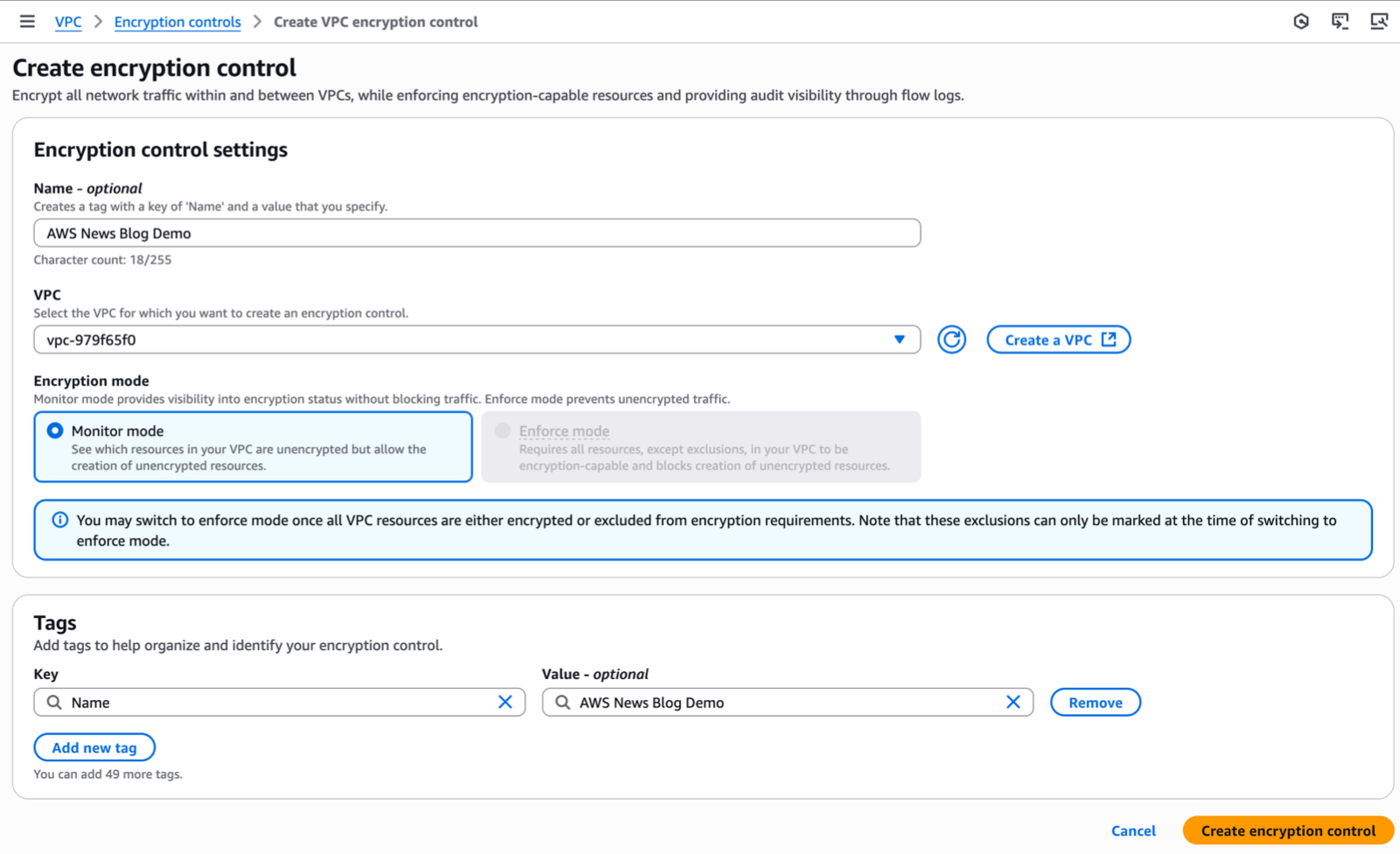
Alternatively, I can use the AWS Command Line Interface (AWS CLI):
aws ec2 create-vpc-encryption-control --vpc-id vpc-123456789
Bash
Next, I audit the encryption status of my VPC using the console, command line, or flow logs:
aws ec2 create-flow-logs \
  --resource-type VPC \
  --resource-ids vpc-123456789 \
  --traffic-type ALL \
  --log-destination-type s3 \
  --log-destination arn:aws:s3:::vpc-flow-logs-012345678901/vpc-flow-logs/ \
  --log-format '${flow-direction} ${traffic-path} ${srcaddr} ${dstaddr} ${srcport} ${dstport} ${encryption-status}'
{
    "ClientToken": "F7xmLqTHgt9krTcFMBHrwHmAZHByyDXmA1J94PsxWiU=",
    "FlowLogIds": [
        "fl-0667848f2d19786ca"
    ],
    "Unsuccessful": []
}
Bash
After a few minutes, I see this traffic in my logs:
flow-direction traffic-path srcaddr dstaddr srcport dstport encryption-status
ingress - 10.0.133.8 10.0.128.55 43236 80 1 # <-- HTTP between web client and server. Encrypted at hardware-level
egress 1 10.0.128.55 10.0.133.8 80 43236 1
ingress - 10.0.133.8 10.0.128.55 36902 80 1
egress 1 10.0.128.55 10.0.133.8 80 36902 1
ingress - 10.0.130.104 10.0.128.55 55016 80 0 # <-- HTTP between web client and server. Not encrypted at hardware-level
egress 1 10.0.128.55 10.0.130.104 80 55016 0
ingress - 10.0.130.104 10.0.128.55 60276 80 0
egress 1 10.0.128.55 10.0.130.104 80 60276 0
Plain text
10.0.128.55is the web server with hardware-encrypted traffic, serving clear text traffic at application level.10.0.133.8is the web client with hardware-encrypted traffic.10.0.130.104is the web client with no encryption at the hardware level.
The encryption-status field tells me the status of the encryption for the traffic between the source and destination address:
0 means the traffic is in clear text
1 means the traffic is encrypted at the network layer (Level 3) by the Nitro system
2 means the traffic is encrypted at the application layer (Level7, TCP Port 443 and TLS/SSL)
3 means the traffic is encrypted both at the application layer (TLS) and the network layer (Nitro)
“-” means VPC encryption controls are not enabled, or AWS Flow Logs don’t have the status information.
The traffic originating from the web client on the instance that isn’t Nitro based (10.0.130.104), is flagged as 0. The traffic initiated from the web client on the Nitro- ased instance (10.0.133.8) is flagged as 1.
I also use the console to identify resources that need modification. It reports two nonencrypted resources: the internet gateway and the elastic network interface (ENI) of the instance that isn’t based on Nitro.
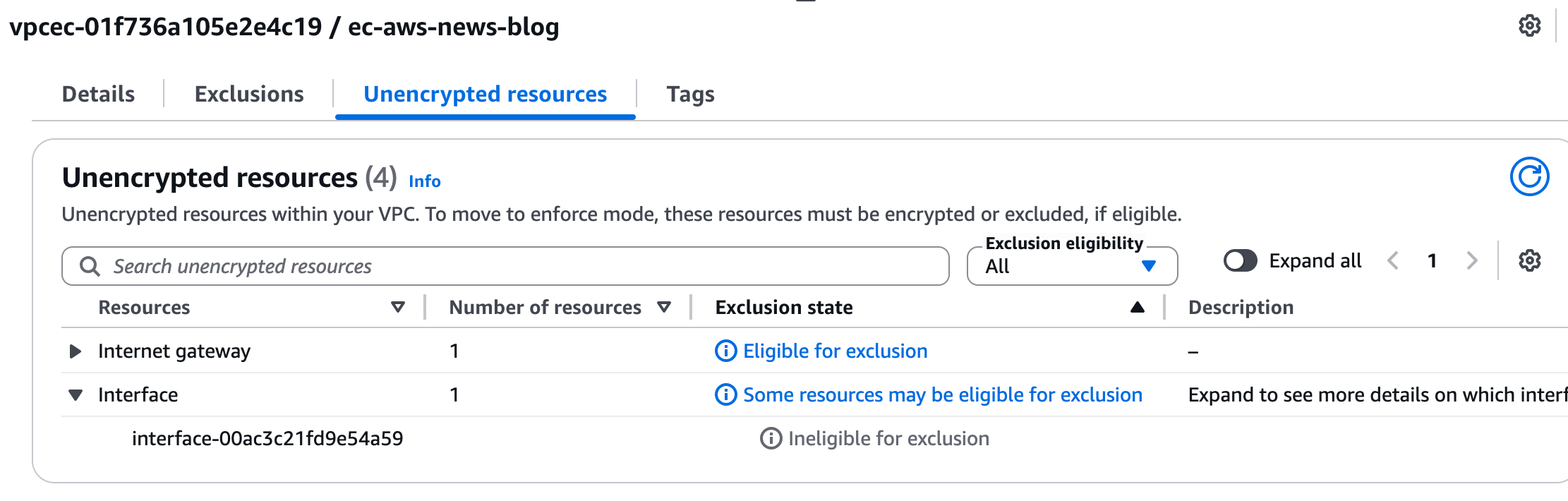
I can also check for nonencrypted resources using the CLI:
aws ec2 get-vpc-resources-blocking-encryption-enforcement --vpc-id vpc-123456789
Bash
After updating my resources to support encryption, I can use the console or the CLI to switch to enforce mode.
In the console, I select the VPC encryption control. Then, I select Actions and Switch mode.
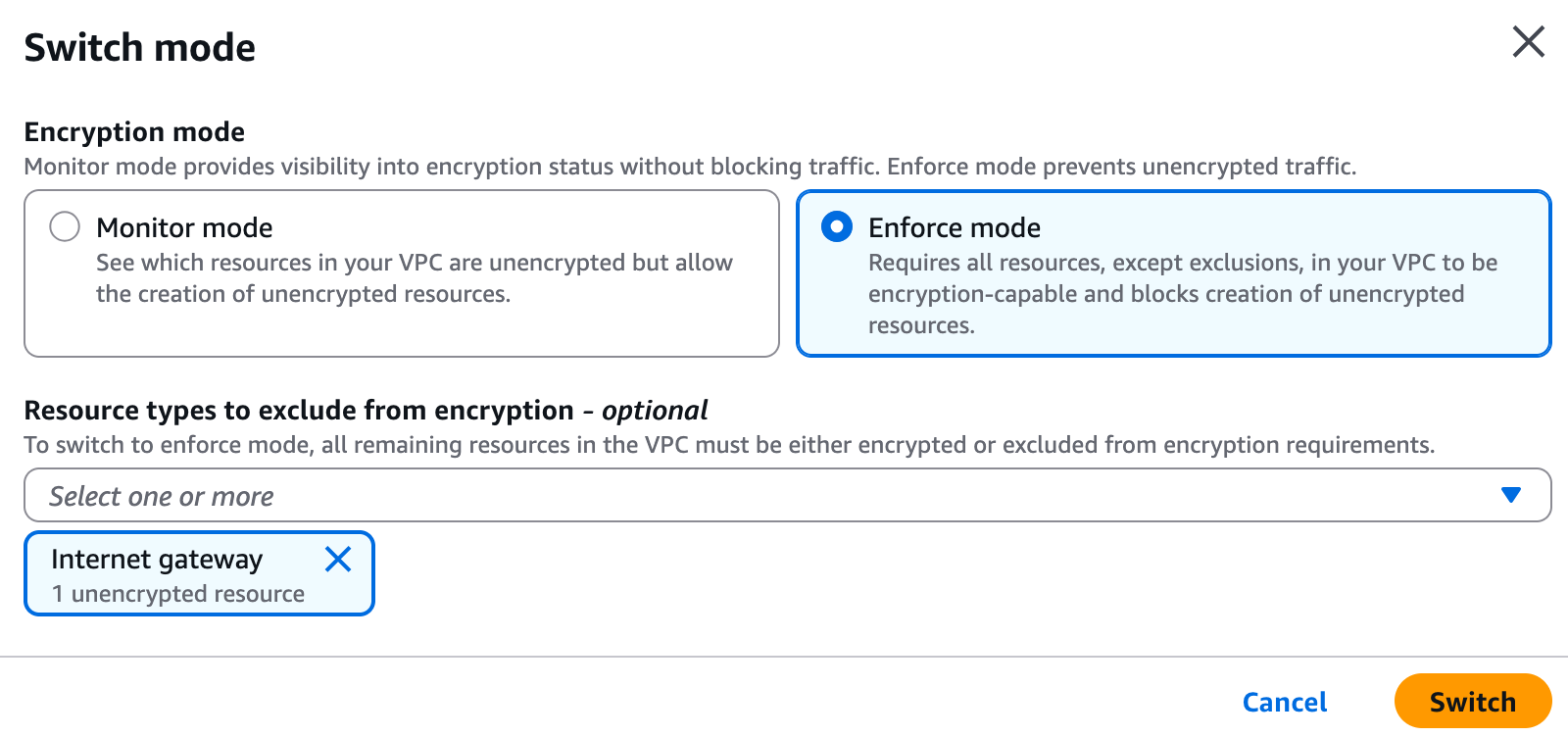
Or the equivalent CLI:
aws ec2 modify-vpc-encryption-control --vpc-id vpc-123456789 --mode enforce


